
Updated . A 4-minute read. By Skai P, Boldnsmart.
BulkPilot is a Shopify app built for this. See it on the Shopify App Store.
Why a code costs you the deal
A code asks the shopper to remember it, find the box and type it. Baymard Institute’s checkout research puts it plainly:
“If discounts can be autoapplied, do it. Users consider this beneficial as it provides both convenience and trustworthiness, yet 83% of sites don’t offer it.”
Our research note on showing the price before checkout has the sources and their limits.
What the shopper sees with BulkPilot
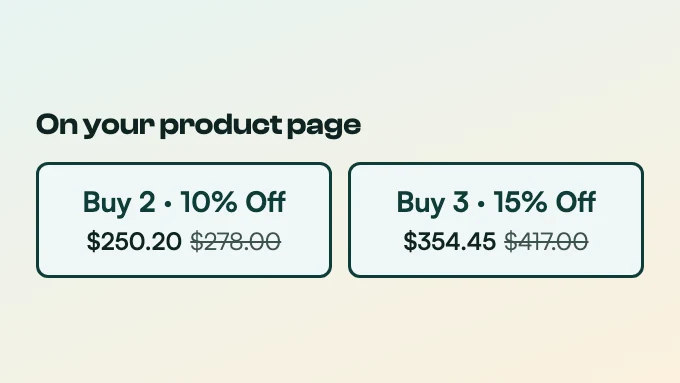
- Product page. Two buttons, such as “Buy 2 · 10% OFF”, each with the tier total and the regular total struck through, worked out for the chosen variant.
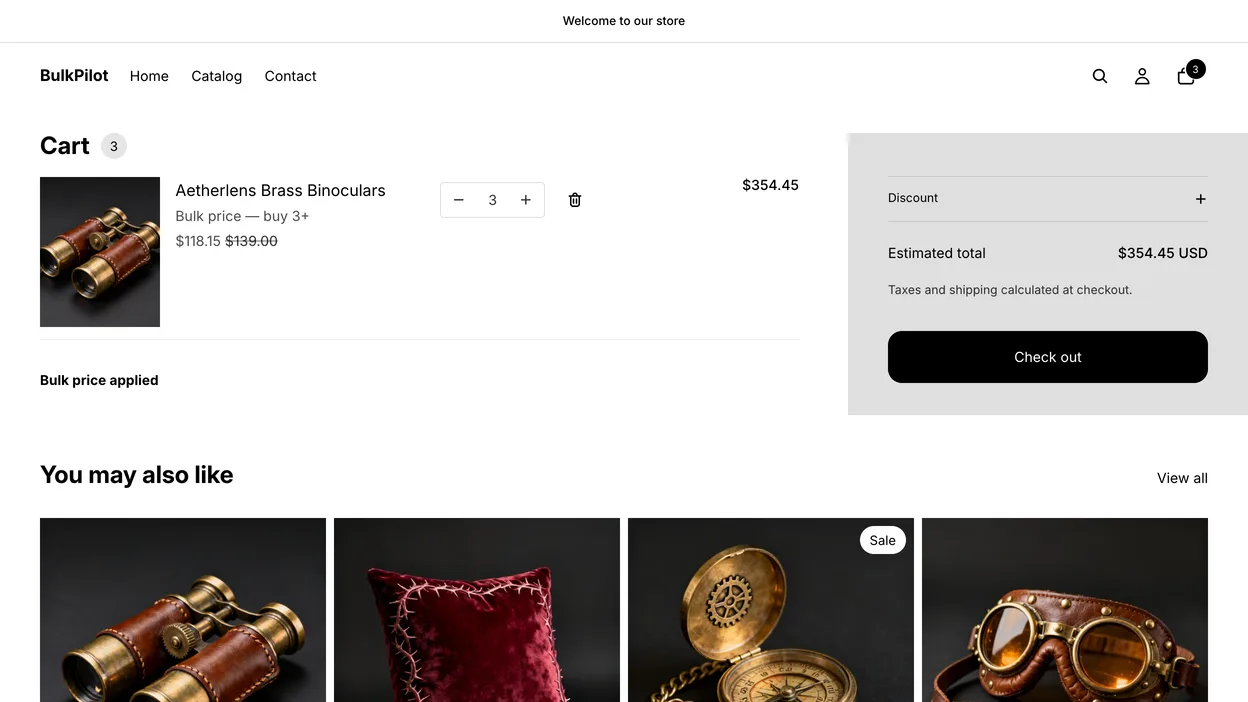
- Cart page. The same buttons, and “Bulk price applied” once a tier is in effect.
- Checkout. A discount line named “Bulk price — buy 2” or “Bulk price — buy 3+”. No code box to fill.
Set it up step by step
- Install BulkPilot
Install it from the Shopify App Store. The setup guide on Boldnsmart walks through each screen.
- Create a tier rule
Open Rules, then New rule, and choose the products, collections or the whole store. Type the Buy 2 % OFF, and the same for Buy 3: the total fills itself in. Each price must be lower than the regular price: a saving can be up to 95% OFF, and Buy 3 must save at least as much as Buy 2. For BOGO, switch the deal type instead: Buy 2 becomes buy 1, get 1 50% OFF, and Buy 3 becomes buy 2, get 1 free.
- Add the product page buttons
On the app’s Home page click Add to product page. The theme editor opens with the block added; drag it just under Add to cart and click Save.
- Add the cart page buttons
Click Add to cart page, drag the block above the Check out button and click Save.
- Test it
Open the product on your store, tap Buy 2 and go on to checkout. The discount line shows, and no code is asked for.